A Purchase Requisition is a document to request goods or services from another department or company. It is an official request for something that will be used in the business, and a supervisor must approve it before the order can be placed.
This blog post will discuss what it is and how to create one!
Evaluate purchase order finance using our Purchase order finance online calculator.
What is Purchase Requisition, and what are its purposes?
A Purchase Requisition is a document that formally requests specific goods or services. It is submitted to the appropriate approval, which authorizes the purchase.
That will help you make sure that there are no mistakes when it is time to buy something.
How to create a Purchase Requisition?
To create one, you must gather information about the goods or services you want to purchase. This information will include the item’s description, quantity, and price.
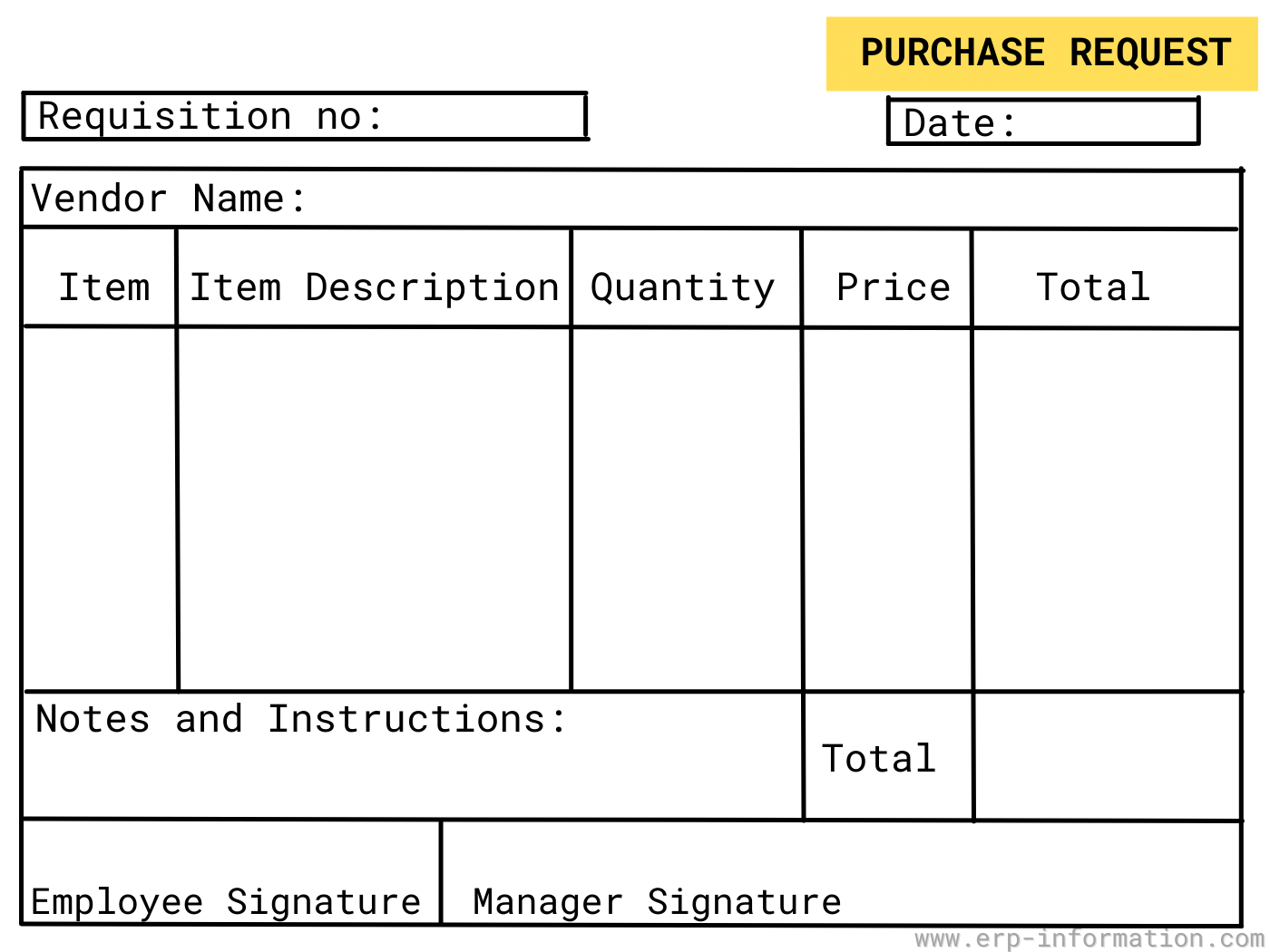
Then, you will need to create a document containing this information and submit it to the appropriate approving authority.
Make sure to include the following information:
- Item description
- Quantity
- Price
- Approving authority
- Date of request
Please contact your company’s purchasing department if you have questions about creating it.
How to create Purchase Requisition in SAP?
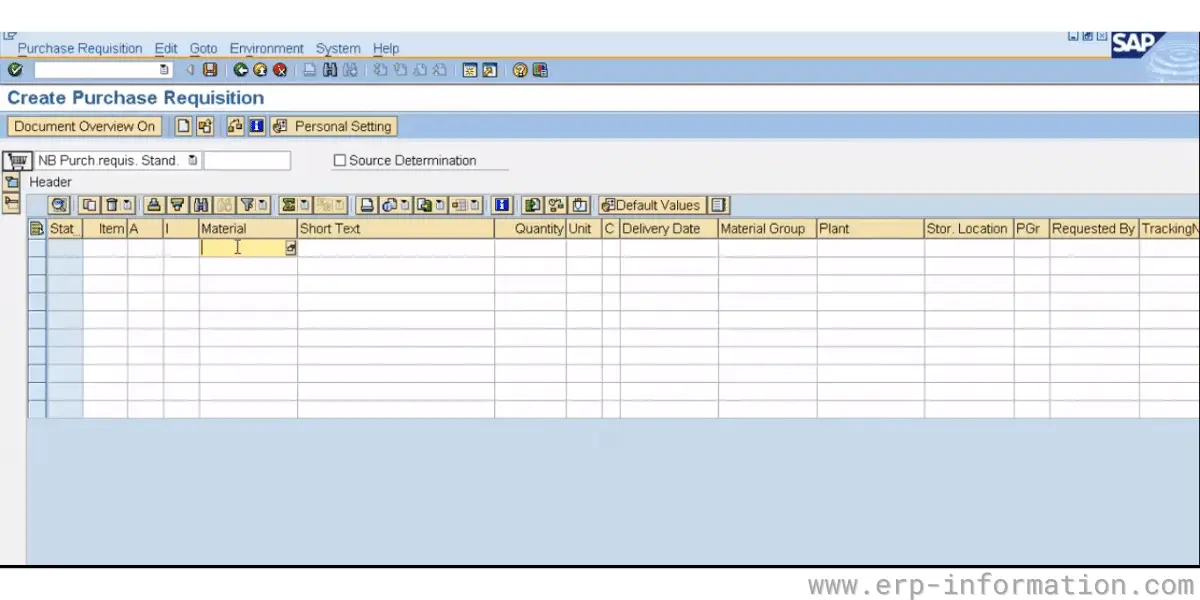
In SAP ECC and SAP S/4HANA the transaction is ME51N. It is a single-screen transaction with three areas: a Header, an Item Overview, and an Item Detail pane for the line you have selected.
One point trips people up constantly: the header of a requisition holds almost nothing. It carries header texts, and that is essentially it. The material, quantity, unit of measure, plant, delivery date and account assignment are all item data. A requisition is a list of items with a number on top, not a header document with children the way a purchase order is.
Approval in SAP is not a person signing a form, it is the release strategy. Configuration decides, from characteristics such as value, plant, purchasing group and material group, which release codes a requisition must clear. Release one item at a time with ME54N, or work a queue with ME55. Only once every required release code is set can purchasing convert the item into a purchase order.
- Enter ME51N in the command field, or follow the menu path Logistics, Materials Management, Purchasing, Purchase Requisition, Create.
- Pick the document type. NB is the standard requisition; the type drives the number range, the field selection and the release strategy, so getting it right matters more than it looks.
- In the Item Overview, enter the material number, or leave it blank and type a short text plus a material group for something not held as a material master.
- Enter quantity, delivery date and plant. These are the fields that actually stop you saving.
- Open Item Detail to add account assignment for anything consumed rather than stocked, a cost centre for example, and a desired vendor if you have one in mind.
- Save. SAP assigns the requisition number itself under internal number assignment, so do not go looking for a field to type it into.
Note what is not on that list. A vendor is optional. SAP holds two separate fields for it, a desired vendor and a fixed vendor, and either can be left empty for purchasing to decide later through source determination.
Which fields SAP actually requires
| Field | Where it lives | Required? |
|---|---|---|
| Document type | Item | Yes, defaults to NB |
| Material number | Item | No, if you give a short text and material group instead |
| Quantity and unit | Item | Yes |
| Delivery date | Item | Yes |
| Plant | Item | Yes |
| Valuation price | Item | Yes, unless field selection makes it optional |
| Account assignment | Item detail | Only for consumable items |
| Desired or fixed vendor | Item detail | No |
| Requisition number | Assigned by SAP | Not entered by you |
SAP transaction codes for purchase requisitions
| Code | What it does |
|---|---|
| ME51N | Create a purchase requisition |
| ME52N | Change one, including setting the deletion indicator |
| ME53N | Display one |
| ME54N | Release (approve) an individual requisition |
| ME55 | Collective release |
| ME5A | List display, the usual way to find requisitions you cannot remember the number of |
ME21N appears in a lot of published guides to changing a requisition. It is worth being clear that ME21N creates a purchase order and has nothing to do with editing a requisition. The transaction you want is ME52N.
Where SAP stores a purchase requisition: EBAN and EBKN
A requisition has no header table. This surprises people who come to it from purchase orders, which split across EKKO for the header and EKPO for items. Requisition data sits in a single item table, EBAN, keyed on the requisition number plus the item number. Account assignment is held separately in EBKN.
| Table or field | Meaning |
|---|---|
| EBAN | Purchase requisition item data |
| EBKN | Purchase requisition account assignment |
| BANFN | Requisition number (key) |
| BNFPO | Item number of the requisition (key) |
| BSART | Document type, NB for a standard requisition |
| LIFNR | Desired vendor |
| FLIEF | Fixed vendor |
| FRGKZ / FRGZU | Release indicator and release status |
| LOEKZ | Deletion indicator |
| EBAKZ | Closed indicator |
| AFNAM | Name of requisitioner |
If you are reporting on requisitions, that key pair is the thing to internalise. One requisition number can carry many items, each at its own release status, each convertible into a different purchase order.
What are the different types of Purchase Requisitions?
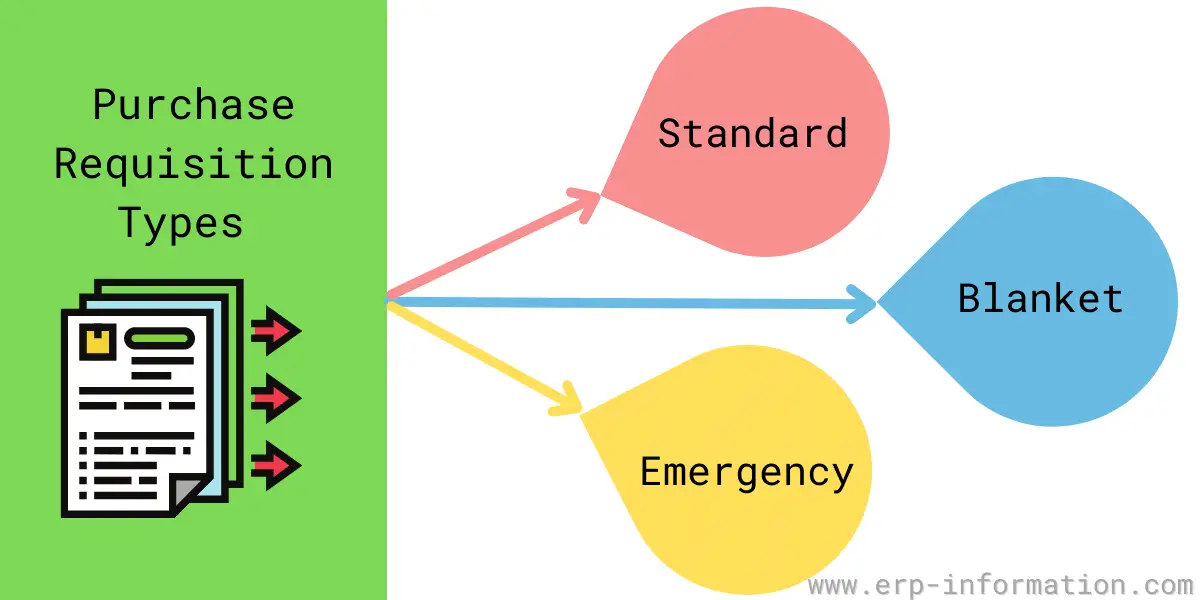
Plenty of articles claim a requisition comes in three flavours: standard, blanket and emergency. That taxonomy is not SAP’s, and looking for it in the system is a waste of an afternoon. What SAP actually gives you is a document type on each requisition item.
| Document type | Used for |
|---|---|
| NB | The standard requisition, for external procurement from a supplier |
| UB | Stock transport requisitions, moving material between plants |
| Customer defined | Anything your business needs, usually copied from NB |
Additional types are configured in SPRO under Materials Management, Purchasing, Purchase Requisition, Define Document Types. Most organisations copy NB and adjust the number range, field selection and release strategy. So if your system does show something like an emergency requisition, it is a local configuration decision, not standard SAP, and its rules are whatever your team set.
Tips for creating Purchase Requisitions that get approved quickly
- Make sure to include all of the necessary information
- Know which release strategy your value band triggers before you submit
- Keep it concise and easy to read
- Enter accurate quantities and prices
- Select the correct supplier
- Use a standard Purchase requisition whenever possible
Common mistakes made when creating Purchase Requisitions
- Leaving out the account assignment on a consumable item, which blocks conversion to a purchase order later
- Typing a free text description when a material master already exists, which loses the pricing and source of supply that come with it
- Splitting one requirement across several requisitions to duck a release strategy value band
- Entering a delivery date that ignores the planned delivery time, so the item is late the moment it is created
- Treating a released requisition as final. Items can still be changed, and in many configurations a change resets the release
- Deleting a requisition item that a purchase order already references, instead of closing it
What is the transaction code for a purchase requisition in SAP?
ME51N creates a purchase requisition, ME52N changes one, and ME53N displays it.
For approval, ME54N releases an individual requisition and ME55 handles a collective release. ME5A gives you a list display when you do not know the number.
How do you change or delete a purchase requisition in SAP?
Use ME52N, not ME21N. ME21N creates a purchase order and cannot edit a requisition.
In ME52N, open the requisition, select the line item, and use the delete button above the item overview. That sets the deletion indicator (field LOEKZ in table EBAN) rather than erasing the record.
If the item is already referenced by a purchase order, set the Closed indicator on the Quantities and dates tab (field EBAKZ) instead of deleting it.
Which SAP table stores purchase requisitions?
EBAN holds purchase requisition item data, keyed on BANFN (the requisition number) and BNFPO (the item number). EBKN holds the account assignment.
There is no header table. Unlike a purchase order, which splits across EKKO and EKPO, a requisition is stored purely at item level.
Is a vendor mandatory on a SAP purchase requisition?
No. SAP stores a desired vendor in LIFNR and a fixed vendor in FLIEF, and both can be left empty.
Purchasing can determine the source later. The fields that actually stop you saving are quantity, delivery date and plant.
Conclusion
Purchase requisitions can be confusing, but they are essential to purchasing. In this article, we have outlined what they are and how to create them in SAP. We have also provided tips for creating one that gets approved quickly.
Hopefully, this information will help you understand Purchase requisitions and make the purchasing process easier.